Camera
In this section we explain how to navigate in the visualization area.
Tools and commands (Camera)
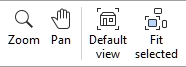
The toolbar includes common tools and commands to navigate in the visualization area:
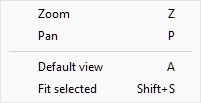
These and additional related commands are available in Main Menu > Camera:
Zoom
This tool lets you zoom in and out in the visualization area.

- Keyboard shortcut: Z
Instructions:
Method 1: dedicated tool mode
- Activate the tool with its button, menu item or keyboard shortcut.
- Then do one of the following:
- While holding the left mouse button down in the visualization area, move the mouse up to zoom in, or down to zoom out. This provides a progressive zoom control.
- Left click on a point in the visualization area. Each click achieves an incremental zoom targeting the point you clicked. Use Shift + click to zoom out by increments.
- Switch to another tool after you have finished zooming.
Method 2: temporary mode
You can also zoom in and out without activating the tool. This method provides a convenient temporary zoom while keeping any other tool active, such as editing tools:
- scroll your mouse wheel in the visualization area.
Note: When you zoom in, the scene is centered on the location of your mouse pointer.
Advice: to zoom slower, hold Space bar while zooming.
Pan
This tool lets you shift the viewpoint left, right, up or down.
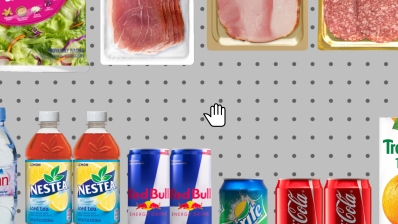
- Keyboard shortcut: P
Instructions:
Method 1: dedicated mode
- Activate the tool with its button, menu item or keyboard shortcut.
- Then do one of the following:
- While holding the left mouse button down in the visualization area, move your mouse in the direction you wish to shift the view. This provides a progressive pan control.
- Left click anywhere in the visualization area. The viewpoint is instantly centered on the point you clicked.
Method 2: temporary mode
You can also pan the view without activating the tool. This method provides a convenient temporary pan while keeping any other tool active, such as editing tools:
- Press the Ctrl key and hold it down during the next steps.
- Then do one of the following:
- While holding the mouse middle button down, drag the mouse within the visualization area to pan.
Middle Click anywhere in the visualization area. The viewpoint is instantly centered on the point you clicked.Advice: to pan slower, hold Space bar while panning.
Default view
This command resets the visualization area to a predefined view which fits all the visible elements in your planogram.
- Keyboard shortcut: A
Fit all
Fit selected
This command zooms the view onto the selected planogram elements.
- Keyboard shortcut: Shift + S
Camera parameters
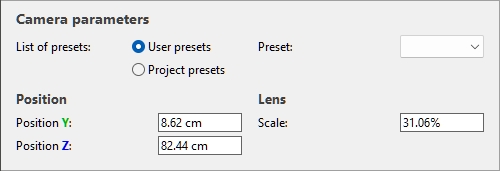
This panel gives access to precise control of the camera in the visualization area.
Here, you can change and save the current point of view, as well as apply a previously saved viewpoint.
Presets (Camera parameters)
List of presets (Camera parameters)
Camera presets allow you to save and retrieve saved viewpoints.
Two lists of presets are available for you to save and load presets:
- User presets: this list saves viewpoints per user. The presets saved here are available to you with any planogram project. Use this list to save viewpoint that you will re-use across several planograms. Note that a saved camera can still zoom in or out automatically to fit the whole planogram on screen. cf. Create a preset (Camera parameters).
- Project presets: this list saves viewpoints within the current project. The presets saved here are only available with the project they are saved in. Use this list to save cameras that you only use for one project. You can save and reload several viewpoints, which makes it convenient to switch between predefined views in a complex planogram, for example, a complete store.
Preset (Camera parameters)
A drop-down list where you can select a saved preset. If a saved preset is currently used, its name is displayed.
The content of the drop-down list depends on which preset list you selected. cf. List of presets (Camera parameters).
Create a preset (Camera parameters)
- Adjust the camera to the desired viewpoint, using Camera or Current camera parameters.
- Right-click anywhere within the camera parameter panel.
- In the context menu, choose Presets > Save as.
- Select in which list of presets you want to save your new preset.
- Type the name of the preset to save in the text box.
- Optionally, check Fit all:
- Checkmarked: this saves the current viewing orientation, the field of view angle and the value of orthographic toggle. However, when loading such saved preset, the view is reframed (zoomed in or out) to display the entire planogram on screen. When saved in the list named User presets, this is very convenient to view multiple planograms from a repeatable viewing angle.
- Not checkmarked: this saves all the camera parameters in the preset. Reloading such preset applies the exact viewpoint, including the distance to the planogram objects. Use this to save a precise viewpoint which you want to reuse.
- Click Save.
- The saved preset is now available in the drop-down list.
Apply a preset (Camera parameters)
- Choose the desired list of presets.
- The corresponding available saved presets are shown in the drop-down list.
- Select a preset in the drop-down list to load it.
- The viewpoint changes to match the loaded preset.
Delete a preset (Camera parameters)
- Choose the desired list of presets.
- The corresponding available saved presets are shown in the drop-down list.
- Select a preset in the drop-down list to load it.
- Right-click anywhere within the camera parameter panel.
- In the context menu, choose Presets > Delete.
Current camera parameters
The bottom area of the panel lets you display and edit the current camera parameters.
Position (Camera parameters)
Position Y (Camera parameters)
The position of the camera on the Y axis (lateral position) in the current measurement unit.
- Supported values: positive/negative numeric value [+-0-9 and decimal point]
- Default value: 0
- Example: 100
Advice: The position can also be defined with the mouse. cf. Tools and commands (Camera).
Position Z (Camera parameters)
The position of the camera on the Z axis (height position) in the current measurement unit.
- Supported values: positive/negative numeric value [+-0-9 and decimal point]
- Default value: 0
- Example: 140
Advice: The position can also be defined with the mouse. cf. Tools and commands (Camera).
Lens (Camera parameters)
Scale (Camera parameters)
This value reflects the magnification of the camera.
- Supported values: positive percentage value between 0.01% and 2000%. A lower value corresponds to a smaller scale. A higher value results in a higher magnification.
- Default value: N/A
- Example: 32.5%
Advice: The camera scale can also be defined with the mouse. cf. Zoom.
