Database item list
The left side of the screen shows a list of your database items in a table like a spreadsheet.
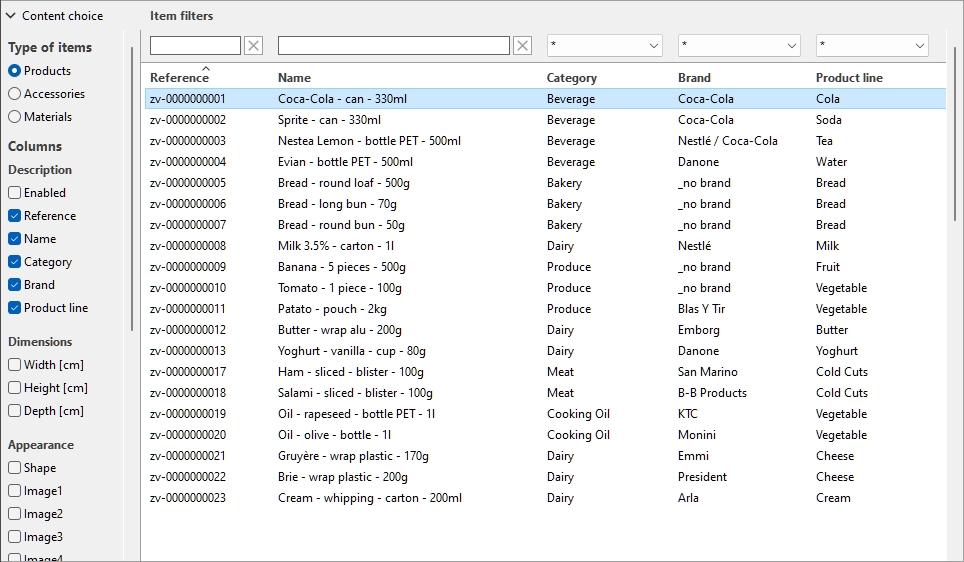
Type of items (Database item list)
This drop-down list lets you choose what type of item you want to work on:
- Products
- Accessories
- Bay components
- Room elements
- Materials
cf. Type (Item properties) for a description of each type of items.
Instructions:
- Click on the drop-down list.
- Select the type of items to display.
- The database list now displays only the items of the chosen type.
- Repeat and select another type when you want to work on different objects in the database.
Important: the type of items currently displayed is also assigned to any new item that you add with Create (database item).
Choose columns (Database item list)
This button on the list header bar lets you configure which item properties are displayed in the database list.
For each property displayed in the list as a column, its value is shown for each item.
All the available properties are in the form of checkboxes which toggles the display of the corresponding column in the list.
- Supported values: all item properties available in the database. cf. Item properties for details on each available property.
- Default values for products and accessories:
-
- Reference
- Name
- [Item classification properties - Level 1]
- [Item classification properties - Level 2]
- [Item classification properties - Level 3]
- Default values for Bay components, Room elements and Materials:
-
- Reference
- Name
- Example:
-
- Reference
- Name
- Enabled
- Image1
- Shape
Instructions:
- Click on Choose columns.
- A dialog window opens, showing the list of available properties. Note: Type of items (Database item list) changes what columns are available. Here is an example of the dialog for products.
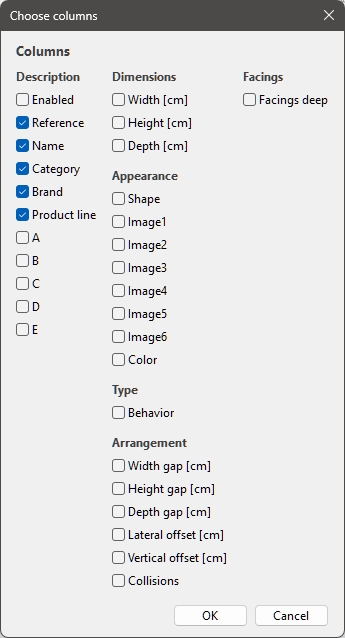
- Select the properties to display as columns.
- Click OK.
- The dialog window closes.
- The desired columns are now displayed in the database item list.
Notes:
- if some columns don't fit in the list pane, you can use the horizontal scrollbar to view them.
- Properties which are not available for the current type of items are not shown in the column choices. For example, Facings deep is not displayed when you are listing accessories or materials.
Item filters
Filters are available for many columns.
Text filters
Some columns can be filtered by text (ex: Reference, Name) to display only matching items. The text filters accept single or multiple keywords following these rules:
- Keywords are not case sensitive.
- Multiple keywords must be separated by spaces.
- Multiple keywords search for values containing all the keyword.
- The order of keywords doesn’t matter.
Example: type frozen CHOCOLATE in the textbox above the column with Name. This will display all the items containing chocolate AND frozen in their name.
Note: Items with same text values but mixed upper and lower case are grouped in the database list. E.g., Lego and LEGO are grouped as the same value.
Drop-down filters
Some other columns can be filtered by selecting a matching value in drop-down lists.
Selecting the * symbol means all available items will be displayed in the list.
After you select or type values for filtering, the remaining drop-down lists only display items matching that filter combination, so you can narrow down quickly on available items.
Item sorting
By clicking on the header of each column, you can sort the list according to the column content. For example, to order the list by product names, click on Name. To order it by references, click on Reference. Clicking again on a header reverses the order.
Item selection
You can select one or several items in the list for further processing or to modify its / their properties. (To learn how to see and modify its(their) properties, cf. Item properties.)
To select 1 item:
- Above the database list, use the drop-down to set the value of Type of items to match what you want to select: Products, Accessories, Bay components, Room elements, Materials.
- Click on the desired item to select it in the list. It becomes highlighted.
Advice: You can switch the selected item in the list to the one above or below with the Up and Down arrow keys on your keyboard.
To select multiple items, there 2 methods:
- Method 1:
- Click on one item in the list to select it.
- Hold the Ctrl key and click on another item to select it.
- Repeat the above step to select additional items.
- Method 2:
- Click on the first desired item in the list.
- Hold the Shift key and click on the last desired item in the list.
- All the items listed from the first to the last one selected also become selected.
- You can select additional items using method 2.
To deselect items:
- Use the above methods to click again on the selected item(s) that you want to deselect.
